

Flashcards are still one of the best study tools for memorizing information quickly. Whether you are preparing for exams, learning a language, studying medical terms, or reviewing formulas, flashcards make active recall much easier.
The good news is that you do not need expensive software to create them. If you already use Microsoft Word, you can build clean, printable study flashcards right from your computer.
In this guide, you will learn exactly how to make flashcards on Word step by step. You will also learn how to format cards properly, print double sided flashcards, save them as PDF files, and avoid the common mistakes beginners make.
By the end, you will be able to create both printable flashcards and digital flashcards for better studying.
Why Students Still Use Flashcards
Flashcards work because they force your brain to actively remember information instead of simply rereading notes.
This method is called active recall. It is one of the most effective study techniques for long term memory.
Flashcards are especially useful for:
- Vocabulary
- Definitions
- Historical dates
- Math formulas
- Science concepts
- Language learning
- Medical terminology
- Quick revision sessions
Many students now combine traditional printable flashcards with digital tools for even better results.
What You Need Before You Start
Before learning how to make flashcards on Word, make sure you have:
- Microsoft Word installed
- A printer if you want physical cards
- Thick paper or index card paper for better durability
- Study material or notes ready
You can use almost any version of Microsoft Word for this tutorial.
Best Flashcard Sizes for Studying
The size of your flashcards matters more than most people realize.
Here are the most common sizes students use:
| Flashcard Size | Best For |
|---|---|
| 3 x 5 inches | Vocabulary and quick facts |
| 4 x 6 inches | Definitions and explanations |
| 5 x 7 inches | Detailed study notes |
| A4 divided into sections | Printable classroom flashcards |
For most students, 3 x 5 or 4 x 6 cards work best because they are easy to carry and review.
How to Make Flashcards on Word Step by Step
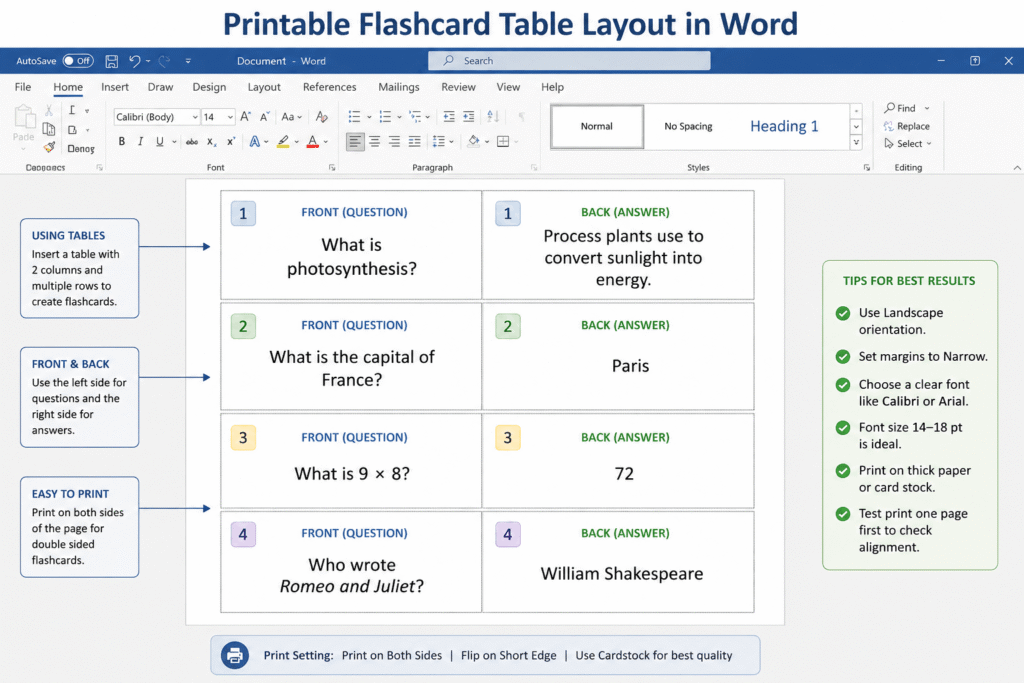
This is the easiest beginner friendly method.
Step 1: Open Microsoft Word
Start by opening a blank document in Microsoft Word.
You can either create cards manually or use a Word flashcard template.
For complete setup instructions, Microsoft also provides guidance on tables and layout formatting through Microsoft Word Support
Step 2: Change Page Layout
Go to the Layout tab.
Adjust the page settings:
- Orientation: Landscape
- Margins: Narrow
Landscape mode gives you more room for evenly spaced flashcards.
Step 3: Insert a Table
Now create the flashcard structure.
- Click Insert
- Select Table
- Choose the number of rows and columns
For example:
- 2 columns × 4 rows
- Creates 8 flashcards per page
Tables are one of the easiest ways to make flashcards in Microsoft Word because they keep everything aligned properly.
How to Format Flashcards Properly
Formatting matters because messy cards become harder to study from.
Use Large Readable Fonts
Good font choices include:
- Arial
- Calibri
- Verdana
Recommended font size:
- Headings: 18 to 24 pt
- Main text: 14 to 18 pt
Avoid decorative fonts because they reduce readability.
Keep Cards Clean
A common beginner mistake is adding too much information.
Instead:
- Use short answers
- Keep one concept per card
- Use keywords instead of paragraphs
- Leave white space
Simple cards improve memory retention.
Add Colors Carefully
Colors can help organize subjects.
Example:
- Blue for science
- Green for biology
- Yellow for vocabulary
Do not overdo it though. Too many colors become distracting.
Example of a Simple Study Flashcard
Here is a basic structure:
| Front Side | Back Side |
|---|---|
| What is photosynthesis? | Process plants use to convert sunlight into energy |
This format works well for nearly every subject.
How to Create Double Sided Flashcards in Word
Many students want true double sided flashcards where the question appears on the front and the answer appears on the back.
This takes a little planning.
Method 1: Manual Front and Back Pages
Create two pages:
- Page 1 contains all questions
- Page 2 contains all answers in matching positions
When printed double sided, the cards line up correctly.
Example:
| Front Page | Back Page |
|---|---|
| Card 1 Question | Card 1 Answer |
| Card 2 Question | Card 2 Answer |
Make sure the order matches perfectly.
Method 2: Use Table Duplication
This method saves time.
- Create the front page table
- Copy the table onto the second page
- Replace questions with answers
- Keep identical spacing
This helps maintain alignment when printing.
How to Print Flashcards in Word
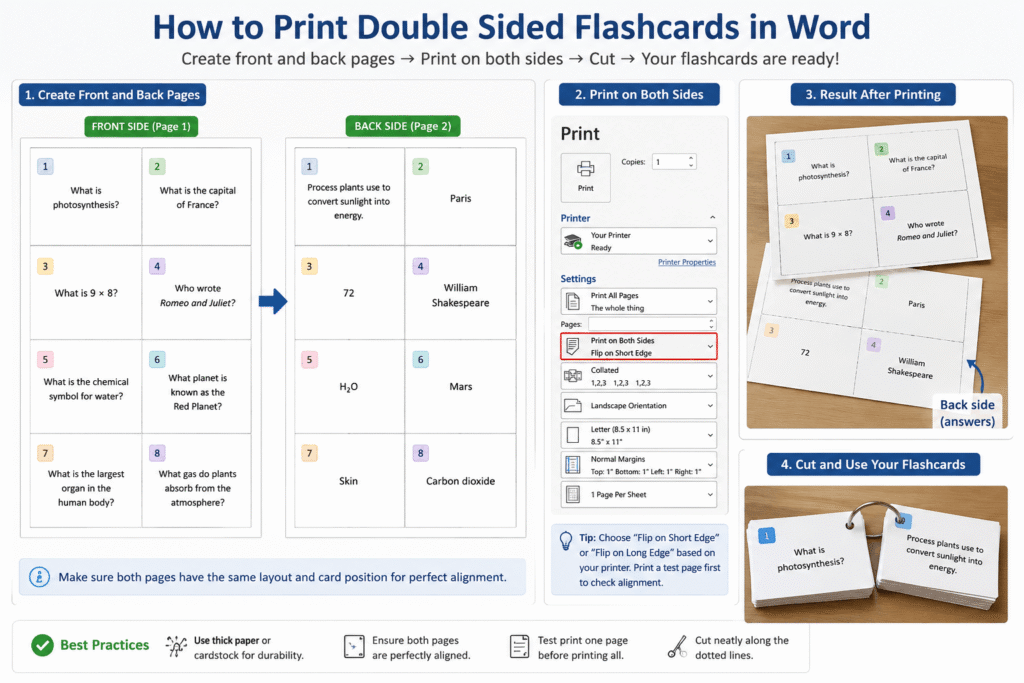
Printing is where many beginners struggle.
Choose the Right Paper
Regular paper works, but thicker paper is much better.
Good choices include:
- Cardstock
- Index card paper
- Matte presentation paper
Thicker cards last longer and feel easier to handle.
Printer Settings for Double Sided Flashcards
Before printing:
- Go to File
- Click Print
- Select Print on Both Sides
Some printers flip pages differently.
You may need to test:
- Flip on long edge
- Flip on short edge
Print one test page first before printing everything.
How to Save Flashcards as PDF
Saving your flashcards as PDF files makes sharing and printing easier.
Steps to Save as PDF
- Click File
- Select Save As
- Choose PDF format
- Save the file
PDF files preserve formatting better than Word documents.
If you plan to print your flashcards later, you may also find our guide on where to print flashcards from PDF files helpful. It explains the best printing options for students, paper choices, and tips for getting clean double sided flashcards.
This is especially useful if:
- You print from another device
- Share cards with classmates
- Upload study materials online
Digital Flashcards vs Printable Flashcards
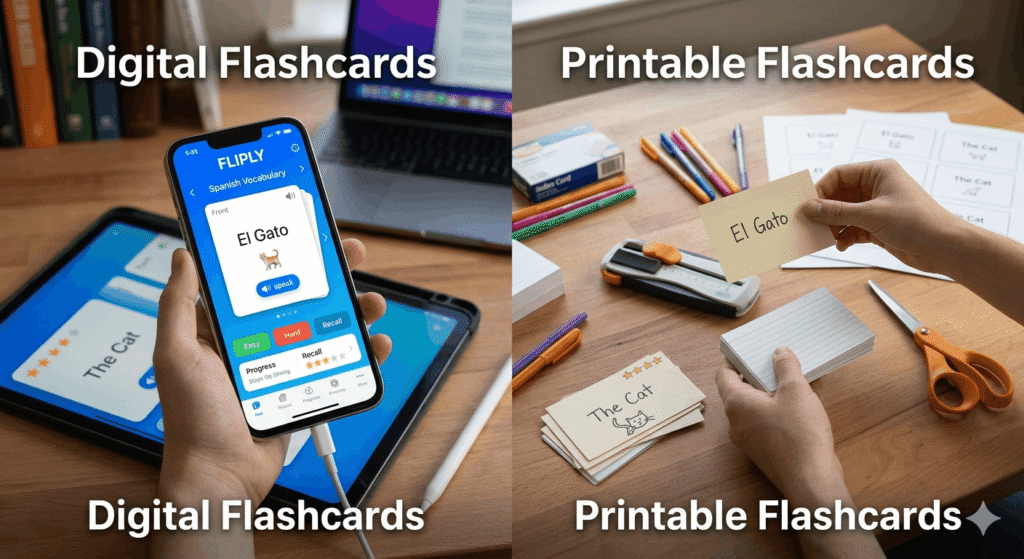
Both methods have advantages.
Here is a quick comparison.
| Feature | Printable Flashcards | Digital Flashcards |
|---|---|---|
| Easy to carry physically | Yes | No |
| Mobile access | Limited | Yes |
| Handwriting benefits | Strong | Weak |
| Fast editing | Slower | Faster |
| Printing required | Yes | No |
| Spaced repetition apps | Limited | Excellent |
Many students actually combine both.
For example:
- Use digital flashcards for daily review
- Print important cards before exams
Manual Word Flashcards vs AI Generated Flashcards
Creating cards manually works well, but AI tools can save time.
| Feature | Manual Word Flashcards | AI Flashcard Generator |
|---|---|---|
| Setup time | Longer | Faster |
| Full customization | Excellent | Good |
| Automatic question creation | No | Yes |
| Best for large notes | Difficult | Much easier |
| Requires manual typing | Yes | Less typing |
| Printing flexibility | Excellent | Excellent |
If you already have long notes, PDFs, or lecture material, an AI flashcard generator can speed things up significantly.
For example, FlashLearnAI.site can help students turn notes and study material into flashcards faster before exporting or organizing them in Word for printing.
That workflow works especially well for exam revision.
Common Mistakes Beginners Make
A lot of students create flashcards incorrectly without realizing it.
Here are the biggest mistakes to avoid.
Adding Too Much Information
Each card should focus on one idea only.
Bad example:
- Entire paragraph on one card
Better example:
- One definition
- One formula
- One concept
Using Tiny Fonts
Small text makes studying tiring.
Always prioritize readability.
Ignoring White Space
Crowded cards feel overwhelming.
Leave enough space around text.
Forgetting Print Alignment
Double sided flashcards must align correctly.
Always test print before printing large batches.
Memorizing Without Reviewing
Flashcards only work if reviewed consistently.
Spaced repetition matters more than card design.
Best Layout Tips for Study Flashcards
Good layout design improves focus.
Use Bold for Keywords
Example:
Mitosis = Cell division process
This makes scanning easier during revision.
Add Images Sparingly
Images help for:
- Anatomy
- Geography
- Diagrams
- Language learning
But avoid cluttering every card.
Keep Consistent Formatting
Use:
- Same font
- Same alignment
- Same spacing
Consistency helps your brain process information faster.
How Students Use Flashcards More Effectively
Making flashcards is only the first step.
Using them correctly matters more.
Study in Short Sessions
Try:
- 15 to 25 minute sessions
- Multiple reviews daily
Short sessions improve focus.
Shuffle Your Cards
Do not memorize the order.
Random review strengthens memory.
Separate Easy and Hard Cards
Create two piles:
- Mastered cards
- Difficult cards
Spend extra time on weak areas.
Say Answers Out Loud
Speaking activates additional memory pathways.
This improves recall during exams.
Review Before Sleeping
Many students remember information better after sleep based consolidation.
Night review sessions can help retention.
How to Make Flashcards for Different Subjects
Different topics need different flashcard styles.
Language Learning Flashcards
Front:
- Foreign word
Back:
- Translation
- Example sentence
Science Flashcards
Front:
- Question or diagram
Back:
- Explanation or formula
History Flashcards
Front:
- Event or year
Back:
- Key details and importance
Math Flashcards
Front:
- Formula name
Back:
- Formula and example problem
Best Word Flashcard Template Ideas
If you create flashcards often, templates save time.
Popular layouts include:
- 2 × 4 grid
- 3 × 3 grid
- Index card style
- Color coded subject templates
You can save your document as a reusable Word flashcard template.
How to Save a Reusable Template
- Click File
- Select Save As
- Choose Word Template format
Now you can reuse the same design anytime.
Should You Use Word or Dedicated Flashcard Apps?
Microsoft Word is excellent for printable flashcards.
But dedicated flashcard tools offer advantages like:
- Automatic spaced repetition
- Mobile syncing
- AI question generation
- Faster editing
The best option depends on your study style.
Word works especially well when:
- You prefer physical cards
- You want complete formatting control
- You need printable study materials
Beginner Friendly Flashcard Workflow
Here is a simple workflow many students follow successfully.
Option 1: Fully Manual
- Research topic
- Create cards in Word
- Print and cut cards
- Review daily
Option 2: AI Assisted Workflow
- Upload notes into an AI flashcard maker
- Generate study flashcards
- Export or rewrite best cards into Word
- Print double sided flashcards
- Study using spaced repetition
This method saves a lot of time during exam season.
How to Organize Printable Flashcards
After printing, organization becomes important.
Try these methods:
- Rubber band by subject
- Small storage box
- Color coded stacks
- Labelled envelopes
Organized cards reduce study friction
Can I make flashcards directly in Microsoft Word?
Yes. Microsoft Word is one of the easiest tools for creating printable flashcards using tables, text boxes, or templates.
What is the best flashcard size in Word?
Most students prefer 3 x 5 inch or 4 x 6 inch flashcards because they are easy to read and carry.
How do I print double sided flashcards in Word?
Create matching front and back pages, then use the printer setting called “Print on Both Sides.” Always test alignment first.
Can I save Word flashcards as PDF?
Yes. Use the Save As option and choose PDF format to preserve your layout for printing or sharing.
Are printable flashcards better than digital flashcards?
Both are useful. Printable flashcards help with focus and handwriting memory, while digital flashcards offer faster review and spaced repetition tools.
Is there a Word flashcard template available?
Yes. You can create your own reusable template or download pre designed templates for Microsoft Word.
What font is best for study flashcards?
Arial, Calibri, and Verdana are excellent because they are clean and easy to read.
Can AI create flashcards automatically?
Yes. AI flashcard generator tools can turn notes, PDFs, and study material into flashcards much faster than manual typing.

Conclusion
Learning how to make flashcards on Word is a practical skill that can improve the way you study.
Microsoft Word gives you full control over formatting, printing, layouts, and customization. Whether you want simple vocabulary cards or detailed study flashcards, Word makes the process beginner friendly and flexible.
The key is keeping your cards clean, readable, and focused on one concept at a time.
You do not need fancy software to build effective flashcards. A simple table, clear formatting, and consistent review sessions are often enough to improve memory and exam performance.
If you want to save time, combining Word with an AI flashcard generator can make the process even faster, especially when working with long notes or PDFs.
The most important part is not creating perfect flashcards. It is reviewing them consistently using active recall and spaced repetition.
That is where real learning happens.